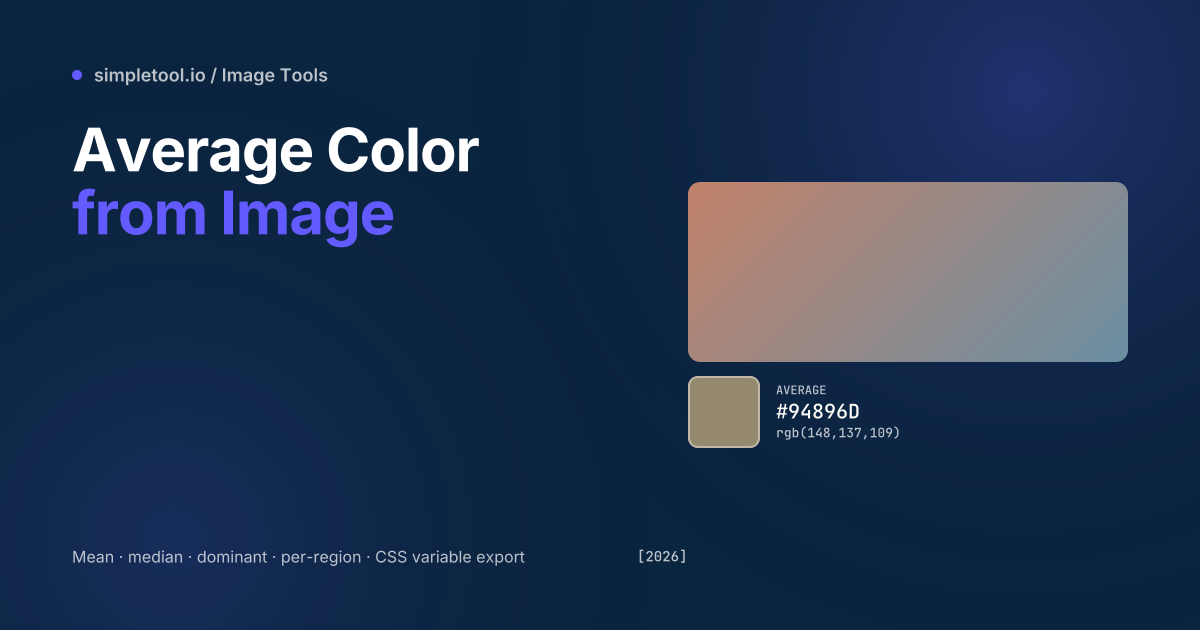
“What’s the average colour of this image?” is a deceptively simple question. The naive answer — sum every pixel’s red, green, and blue values, divide by total pixels — produces the mean colour, but that’s often a muddy brown that doesn’t match anyone’s intuition of what the image “looks like”. A bright photo of a sunset (oranges, reds, dark blues) averages to a dull purple-grey. The dominant colour — the colour that appears most frequently after clustering — is usually a more useful answer.
Our image average color finder reports four different metrics at once: mean (arithmetic average), median (the colour at the centre of the distribution), dominant (most common after clustering), and weighted average (excluding background pixels). Pick the one that matches your need. Drop in any image, get all four values as HEX/RGB/HSL/OKLCH, plus a CSS-variable export. Browser-only.
Mean vs median vs dominant — pick the right metric
| Metric | How it’s computed | Best for |
|---|---|---|
| Mean | Sum each channel, divide by pixel count | Lazy-load placeholders (BlurHash equivalent) |
| Median | Value at the 50th percentile per channel | Robust against outlier pixels |
| Dominant | Most common cluster after K-means k=1 | Theme detection, brand-color extraction |
| Weighted | Mean excluding near-white / near-black | Photos with white background; ignores chrome |
| Center-weighted | Mean with central pixels weighted higher | Subject-focused content (portraits, product shots) |
Why mean often disappoints
Imagine an image of a sunset: red sun, orange sky, blue water. The mean of red + orange + blue is a desaturated brown-grey — a colour that nothing in the image actually is. Mean is a statistical average, not a perceptual representative. For lazy-load placeholders this is fine (you want a single colour that’s unobtrusive), but for “what colour is this image?” answers, dominant is usually closer to intuition.
Mean works well for:
- Image-loading placeholders (Material Design’s blur-up technique)
- Fallback background colour while lazy-loading
- Generating a complementary text-overlay colour
Dominant works better for:
- Theme detection — pick a UI accent colour matching a hero photo
- Brand-colour extraction from a logo
- Generating gradient backgrounds that “match” the image
How to find the average color
- Open the average color finder
- Drop your image (JPG, PNG, WebP, HEIC supported)
- The tool computes mean, median, dominant, weighted average — all four — in 1–2 seconds
- Pick the metric that fits your use case; copy HEX, RGB, HSL, or OKLCH
- Export as CSS variable (
--image-color: #94896D) for direct use in stylesheets
Common gotchas
- Transparent pixels affect mean. By default we count fully-transparent pixels as the chosen “background” colour (white by default). Toggle “ignore alpha” to skip them entirely — better for logos on transparent backgrounds.
- Resolution affects performance. Computing mean is O(n) over pixel count. A 4000×3000 image (12M pixels) processes in ~200ms; a 12000×9000 image (108M pixels) takes ~2 seconds. The tool downsamples to 1024×1024 internally for speed — visually identical result for any image larger than that.
- JPEG compression artefacts shift the mean. Heavily compressed JPGs introduce per-block colour shifts that pull the mean toward greys. For brand-color work, use original PNG / TIFF / WebP if available.
- EXIF rotation matters. A photo from a phone may be stored sideways with EXIF rotation metadata. Our tool reads the EXIF orientation and applies it before computing — ensures the “mean” is over the visible image, not a sideways version.
- Per-region sampling for hero images. A hero image often has chrome at the top (logo, navigation) that you don’t want included in the average. Use the “region” tool to draw a rectangle covering only the photographic content, then compute over that.
- Color space matters. Mean in RGB space biases toward greys (perceptually inaccurate). Mean in OKLab space produces a more perceptually-uniform answer. Our tool reports both — pick OKLab for design work, RGB for compatibility.
When NOT to use this tool
For a multi-colour palette extracted from an image, use the Image Color Extractor — it returns 2–12 colours via K-means clustering. For pixel-perfect colour sampling at a single point, use the Image Color Picker — it shows the exact colour under your cursor. For lazy-load placeholders in production, libraries like plaiceholder or blurhash are more efficient than recomputing on every page load. For colour-detection in real-time video, use OpenCV.js or a WebGPU shader — much faster than per-frame canvas sampling.
Frequently asked questions
Why does the mean colour look different from the image?
Mean is a statistical average across all pixels. For images with high colour variation (sunsets, landscapes), the mean often lands in muddy territory — desaturated brown or grey — because opposing colours cancel out. The dominant colour is usually closer to what you’d intuitively call “the image’s colour”.
Mean, median, or dominant — which should I use?
For lazy-load placeholders: mean (unobtrusive). For theme detection or brand-colour extraction: dominant. For photos with extreme outliers (one bright spot in a dark image): median. Try all four — our tool computes them simultaneously and shows all swatches.
Does it support transparent backgrounds?
Yes — toggle “ignore alpha” to skip transparent pixels entirely. Otherwise transparent pixels are blended against your chosen background colour (white by default). Critical for logos on transparent backgrounds.
Can I sample a specific region?
Yes — draw a rectangle on the image to limit the sample area. Useful for hero images where you want to skip the navigation chrome, or product photos where you want to skip the white background.
Is my image uploaded?
No. The finder runs in your browser via the canvas API. Image data is processed locally — never sent to our servers.
What’s the difference between OKLab and RGB averaging?
Averaging in RGB biases toward greys because R+G+B sums tend to centre around perceptual middle. Averaging in OKLab (a perceptually-uniform colour space) produces a result closer to what the eye perceives as the “centre” of the image’s colour distribution. Our tool reports both for comparison.
Related tools and guides
- Image Average Color Finder
- Image Color Extractor (palette)
- Image Color Picker (single pixel)
- HEX to RGBA Converter
- All color tools